How I Edit YouTube Videos Entirely with AI (And You Can Too)
The full system behind my viral tweet: 3 Claude Code skills that handle camera sync, silence removal, color correction, Remotion animations, and B-roll overlay. Every ffmpeg command, every limitation, and a downloadable package.
How I Edit YouTube Videos Entirely with AI (And You Can Too)
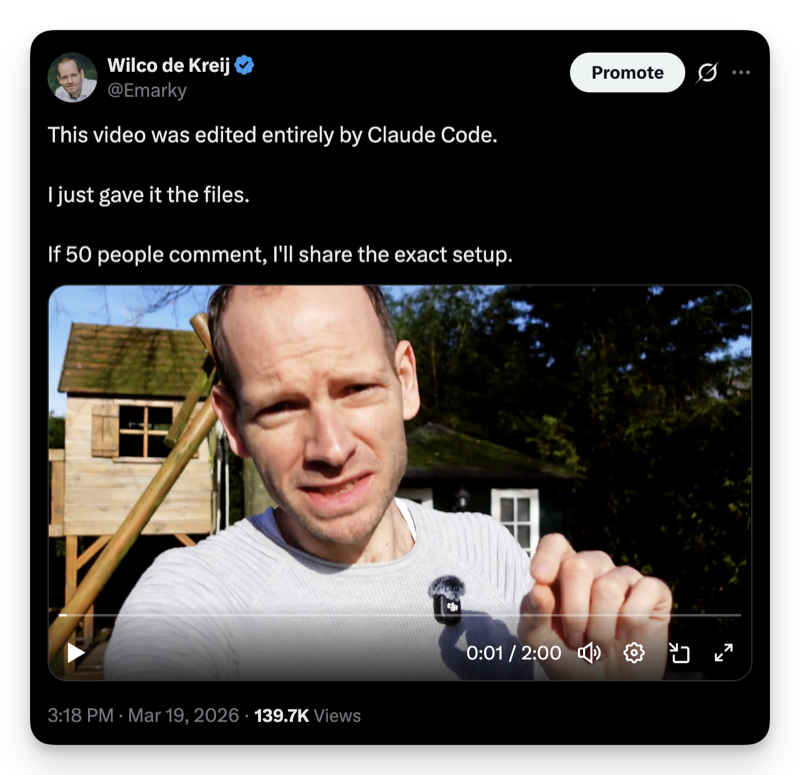
Yesterday I posted a tweet: "This video was edited entirely by Claude Code. I just gave it the files."
250,000+ views. On an account with 4,000 followers.
The viral tweet that started it all
I also said if 50 people commented, I'd share the exact setup. Over 50 commented. So here we are. This is the full system, every technical detail, and (just as importantly) everything that still doesn't work.
And yes, the tutorial video you're watching was also edited by this exact system. So you're looking at the proof while I explain how it works.
How it works in practice
Let me start with how I actually use this thing day to day. Because it's way simpler than you'd expect.
I record a video. I drop the files into a folder. Then I open Claude Code and type something like "hey, video edit." That's it. Claude Code picks up the files, runs the skill, and I go make coffee.
Claude Code is a command-line tool from Anthropic. You give it plain language instructions and it executes them using the tools on your computer (ffmpeg, Node.js, whatever you've got installed). A "skill" is just a markdown file with detailed instructions that tells Claude Code exactly how to handle a specific task. Think of it as a recipe that gets better every time you use it.
I've never actually opened those skill files myself. Seriously. I built them by talking to Claude Code, telling it what I wanted, giving it feedback, and letting it update the instructions. The skills live on my machine, they run locally, and I just interact with them through conversation.
The whole system is three skills that work as a pipeline:
I record everything in one take. One person, one room, sometimes two camera angles. I give it to Claude Code and review what comes back. The review part is real. I watch it, give notes, things get adjusted. But the hours of manual cutting, syncing, color correcting, and audio mastering? Gone.
How I built them (this part matters most)
Here's the thing that I think is actually more interesting than the system itself.
I didn't design some perfect editing pipeline on a whiteboard. The first version was embarrassingly basic. It removed silences and stitched segments together. The result looked exactly like what it was: a crude automated cut.
So I did something that felt a little weird at the time. I told Claude Code: go to YouTube, download videos from Alex Hormozi and Matt Gray, analyze how they edit their videos, and then figure out what we should change in our system.
Not to copy their content. To study their editing patterns.
Claude Code analyzed hours of footage and came back with a detailed breakdown:
Hormozi: 12-15 cuts per minute, 90%+ talking head, no background music, bold text cards at key moments (especially dollar amounts). That "minimal post-production" look that actually requires significant post-production.
Gray: 22-48 cuts per minute, only 30-50% talking head, picture-in-picture during demos, constant subtitles with keyword highlighting, custom motion graphics for frameworks.
Then it ran a gap analysis comparing my video against both. The results were humbling:
B-roll: Mine had 0%. Hormozi uses 5-10%. Gray uses 30-50%.
Color grading: Mine was flat. Both of theirs: professional.
Audio true peak: Mine was at -0.03 dB (basically clipping). Both of theirs: properly mastered.
Text overlays: I had none. Hormozi uses them moderately. Gray uses them heavily.
Zoom levels: I had 2 subtle ones. They both use 3-5 instant zoom cuts.
Zero percent B-roll. Flat color. Audio that was essentially clipping. No text overlays, no motion graphics.
That gap analysis became the roadmap. I went back to the skills and added more aggressive zoom levels, proper color correction, professional audio mastering, and the entire Remotion animation pipeline.
Here's what's bigger than just video editing: you can point AI at professionals in your field, have it extract their patterns, and apply those patterns to your own work. The AI doesn't copy content. It learns techniques. And then every video you make benefits from those techniques automatically.
It's actually not rocket science. It just takes patience and iteration.
What each skill actually does
Now let me get into the technical details. This is where the real value is if you want to build something similar.
Skill 1: /video-edit
This is the workhorse. It takes raw camera files and produces a clean edit. No B-roll, no graphics yet. Just good cuts, solid audio, and color that doesn't look like a webcam.
Camera sync (the clever part). I record with two cameras. They never start at the same time, so the skill figures out the exact offset between them using a 3-phase process:
Phase 1: It extracts audio from both cameras and matches silence patterns. Mid-recording pauses, moments where I stop talking to check notes. These happen at the same real-world time, so matching them gives a rough sync estimate.
Phase 2: Using that rough estimate, it takes 5-second audio chunks from three points in the recording and cross-correlates the waveforms. Gets the offset down to sub-frame precision. The three measurements have to agree within 0.04 seconds (one frame at 25fps). If they don't, it stops.
Phase 3: It extracts synchronized frames from both cameras and checks if my body position matches. If I'm pointing left in one and right in the other, something's off.
I was skeptical at first. Sat there comparing frames manually to double-check. It was right every time.
Silence removal. Every recording has dead air. Long pauses where I'm checking notes (5-70 seconds of nothing), short gaps between sentences that run a bit long. The skill kills all of them.
Settings that work for me:
Silence threshold: -30 dB
Minimum duration to cut: 0.5 seconds
What stays: 0.3 seconds of natural pause (0.15s tail + 0.15s lead)
My latest video had 58 silence gaps. After processing: zero gaps longer than 0.6 seconds.
Three zoom levels from one camera. This makes a single camera look like three. Instead of a gradual Ken Burns zoom (which screams amateur), the skill does instant static crops that switch on each cut:
Normal: Medium shot, chest up. Used for default, factual info.
Punched in: Close-up, face and shoulders (~130% crop). Used for important points.
Tight: Very tight, face only (~150% crop). Used for emotional peaks and bold claims.
The skill reads the transcript and classifies each segment. An emotional story gets a tight crop. A list of facts stays at normal. The pattern alternates so you never see the same frame for more than 7 seconds.
Before any of this works, it has to calibrate where my face is in the frame. It extracts a reference frame, detects face position, and calculates crop offsets. Skip this step and you get a beautifully cropped video of your left ear. Learned that one the hard way.
Color correction. Raw footage from most cameras looks flat. The skill applies a basic correction chain via ffmpeg:
A slight warm shift (reduce blue, touch of red), a gentle S-curve for contrast, and a subtle brightness lift. Nothing dramatic. Just "doesn't look like a Zoom call" territory.
Audio mastering. My first automated edit had a true peak of -0.03 dB. That's essentially touching the ceiling. On some speakers, that distorts. Professional YouTube audio targets -16 LUFS with a true peak of -1.5 dB.
The mastering chain:
Highpass 80Hz (removes room rumble)
Lowpass 14kHz (removes hiss)
Presence EQ: +3dB at 3kHz (voice clarity)
Warmth EQ: +2dB at 200Hz (fuller sound)
De-esser at 0.4 intensity
Compressor: 3:1 ratio, -21dB threshold
Loudness normalization to -16 LUFS, true peak -1.5dB
All of this runs as a single ffmpeg audio filter chain. One command.
The 33-segment filter_complex. All these operations come together in one enormous ffmpeg command. The skill generates a filter_complex that describes every segment: camera source, crop level, color correction, timeline position.
My latest video had 33 segments. Each one gets its own video filter chain (trim, crop, color correct, set frame rate) and its own audio chain (trim, set timestamps). Then all 33 get concatenated.
Multiply that by 33 and you see why nobody writes this by hand.
Skill 2: /video-animate
This is what separates "clean edit" from "looks like an actual YouTube channel."
It transcribes the edited video using faster-whisper (a local speech-to-text model) with word-level timestamps. Not just "what was said" but "exactly when each word was said."
Then it scans the transcript for "show moments," points where a visual would help the viewer. It detects two types:
Verbal cues: When I say "let me show you," "check this out," "here's what it looks like." These are obvious insertion points.
Tool/app context: When I mention specific tools (Claude Code, Chrome, ffmpeg) alongside screen indicators (tab, window, button, settings) within 10 seconds of each other. That usually means I'm describing something that should be shown visually.
For each moment, it creates a custom React component using Remotion. Remotion is a framework that lets you write React components and render them as video. A data point becomes an animated counter. A process becomes a flowchart that builds itself step by step. A comparison becomes a side-by-side that slides in.
Each animation gets rendered in dark and light variants (for different video backgrounds), at 4K, 25fps. The output is a folder of MP4 files, each tagged with the timestamp where it should appear.
Everything follows the brand design system. Heading font: DM Serif Display. Body font: DM Sans. Primary color: orange (#E8620E). Secondary: teal (#0E5C58). Consistency is what makes it look intentional instead of random.
Skill 3: /video-finalize
Takes the edited video and the rendered animations and combines them.
It re-transcribes the edited video (timestamps shift after silence removal) and fuzzy-matches each animation to the exact moment in the transcript where it belongs.
Each animation plays only during its specific time window. Outside that window, you see the talking head. The skill also checks my B-roll catalog for matching footage. I have a library of clips I've recorded (office scenes, desk setups, typing, walking shots) that are tagged by category. If there's a natural B-roll moment and I have matching footage, it inserts it.
Out the other end: a YouTube-ready MP4.
What doesn't work yet (honest list)
I am continually still adjusting and improving this. Here's where it falls short right now.
Transcription is good, not great. I use faster-whisper running locally (medium model, CPU). Maybe 95% accurate. "Remotion" becomes "remission." "ffmpeg" becomes "F F M peg." A cloud API like Deepgram or Grok would probably be better. I wanted the system to work offline, but if that doesn't matter to you, swap it out. It might actually be better if you just use an API.
Zoom-in effects could be better. The three zoom levels work mechanically. But the classification is rule-based, not intuitive. Emotional words trigger tight crops. Lists trigger normal. A human editor would feel the pacing and know that this particular list deserves a tight crop because of the energy in my voice. The rules get better with every edit, but they don't feel vibes.
Color correction doesn't adapt. Same filter chain on every video. Works for my setup because I record in the same room with the same lights. If you record in wildly different environments, you'd need to adjust the values. Adaptive color correction is on the list but not built yet.
B-roll library is on you. The system can catalog and insert B-roll, but you have to record it first. If your library is empty, the finalize skill just skips B-roll. Your first few videos won't have any. Build the library over time.
Animation timing could be improved. Sometimes the animations appear a beat too early or too late. The fuzzy matching works well enough, but a human editor would nail the timing more naturally. This is one of those things that gets incrementally better with feedback.
Scope is limited. I haven't used it for multiple cameras beyond two, or for different shots and locations. I record everything in one take, one room, and I just give it to Claude Code. If you're doing travel vlogs with 47 clips from 6 locations, this isn't built for that. And it might never be. I'm building for what solo creators actually shoot.
Speed: it's background processing, not real-time. A 10-minute video takes about 45 minutes end-to-end. Not instant. But I'm doing other things while it runs. 45 minutes of computer time is very different from 45 minutes of my time.
After every edit I find something to improve. The silence threshold was too aggressive. The zoom classification needed a new rule. The audio chain needed a warmth boost at 200Hz. Each fix gets baked into the skill. Next video is better. Two months of iteration and it's dramatically better than version one.
How to set this up
If you want to build something like this, here's what you need.
Tools:
Claude Code (requires an Anthropic API key or a Claude Pro/Max plan)
ffmpeg (free and open source, the Swiss Army knife of video)
faster-whisper (free, local speech-to-text, runs on CPU)
Remotion (for animations, free for individuals)
Node.js (Remotion runs on it)
I think if you just ask Claude Code to install these tools, it should be able to figure that out. You don't have to actually do that yourself. Tell it what you need and let it handle the installation.
Start simpler than I did. Don't try to build the full pipeline on day one. Start with one thing: silence removal.
Create a Claude Code skill that:
Takes a video file
Detects all silences longer than 0.5 seconds
Cuts them out, leaving 0.3 seconds of natural pause
Outputs the trimmed video
That alone saves hours. And it teaches you how skills work, how ffmpeg commands get generated, and how to iterate on the output.
Once that's solid, add zoom levels. Then color correction. Then transcription and animation. Each layer builds on the last.
A Claude Code skill is a markdown file in .claude/skills/your-skill-name/SKILL.md. It has YAML frontmatter (name, description) and step-by-step instructions that Claude Code follows. The more specific your instructions, the better the output. "Remove silences longer than 0.5 seconds at -30dB threshold, leaving 0.3 seconds of natural pause" beats "edit the video nicely" every time.
Get the full system
I've packaged all three skills, the Remotion animation templates, and a setup guide into a downloadable package.
What's included:
The /video-edit skill (complete editing workflow)
The /video-animate skill (animation detection and creation)
The /video-finalize skill (assembly and overlay)
Remotion project with animation templates (counters, flowcharts, comparisons, quotes, and more)
This is a starting point. The skills I'm sharing are what I use today, but your version will evolve differently based on what you shoot, how you record, and what style you're going for. That's the whole point. You're not locked into my preferences. You tell Claude Code what you want changed, and it updates the skills for you.
---
250,000+ people saw that tweet. I'm guessing a lot of them thought "cool, but I could never set that up."
You can. Start with silence removal. Add one thing at a time. In a couple of weeks, you'll have something that handles most of your editing automatically.
The remaining creative decisions, the ones where your taste and judgment actually matter, that's the part you should be spending your time on anyway.